How do I set up a consignment sale on Jewely Retail?
This guide explains step-by-step how to register a consignment sale in Jewely Retail. A consignment sale allows you to receive an item from a private seller and list it in your store without purchasing it outright. The item is held in your inventory until it sells.
- Access to Jewely Retail with rights to the module Purchases
- Information from occasional seller (name, surname, address, identity document)
- The characteristics of the item to be registered (family, category, brand, reference, materials)
- THE buyback price excluding VAT agreed with the seller and the margin coefficient
Access the Consignment Sales function
From the dashboard, you have two options for starting a consignment sale:
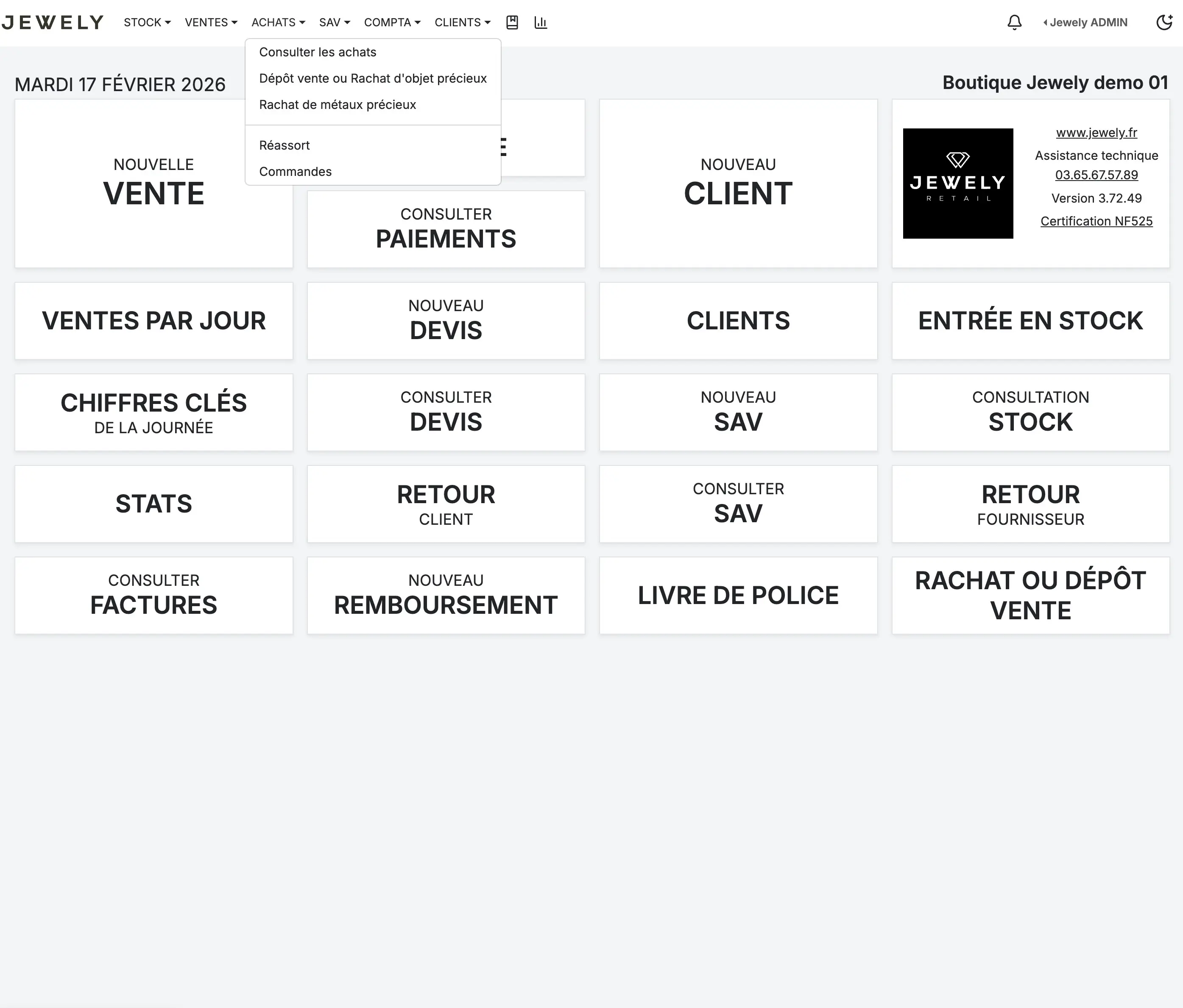
Via the main menu: click on PURCHASES in the navigation bar at the top of the page, then select «"Consignment sale or purchase of valuable items"» in the drop-down menu.
Via the dashboard: You can also click directly on the shortcut. «"BUYBACK OR CONSIGNMENT SALE"» bottom right of the shortcuts grid.
Choose the type of transaction and the seller
A modal window opens with the title «"Consignment sale or purchase of valuable items"».
Transaction type: select «"Consignment shop"» (purple button on the left). The other option, "Buyback," corresponds to a firm purchase, which is not the subject of this tutorial.
Occasional seller: You have two options. If the seller is already registered in your database, click on «"Seller's selection"» Then type the first few letters of their name in the search field. The matching seller will appear below—click on it to select them. If it's a new seller, click on «"New seller"» to create your profile (name, surname, address, etc.).
Then click on the button «" Following "» bottom right.
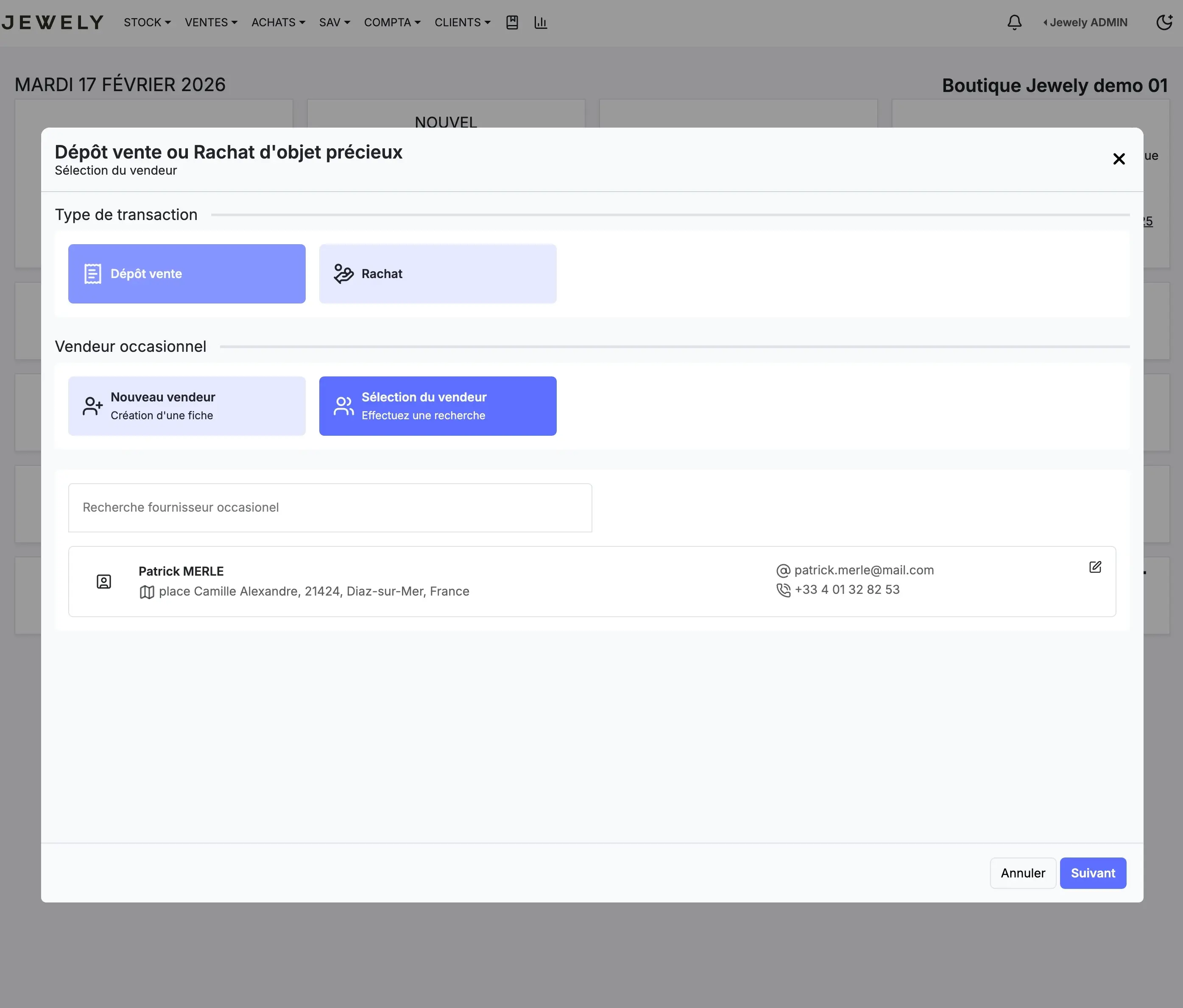
The seller search works by first or last name. Simply type a few letters and the results will appear automatically.
Select the product family and category
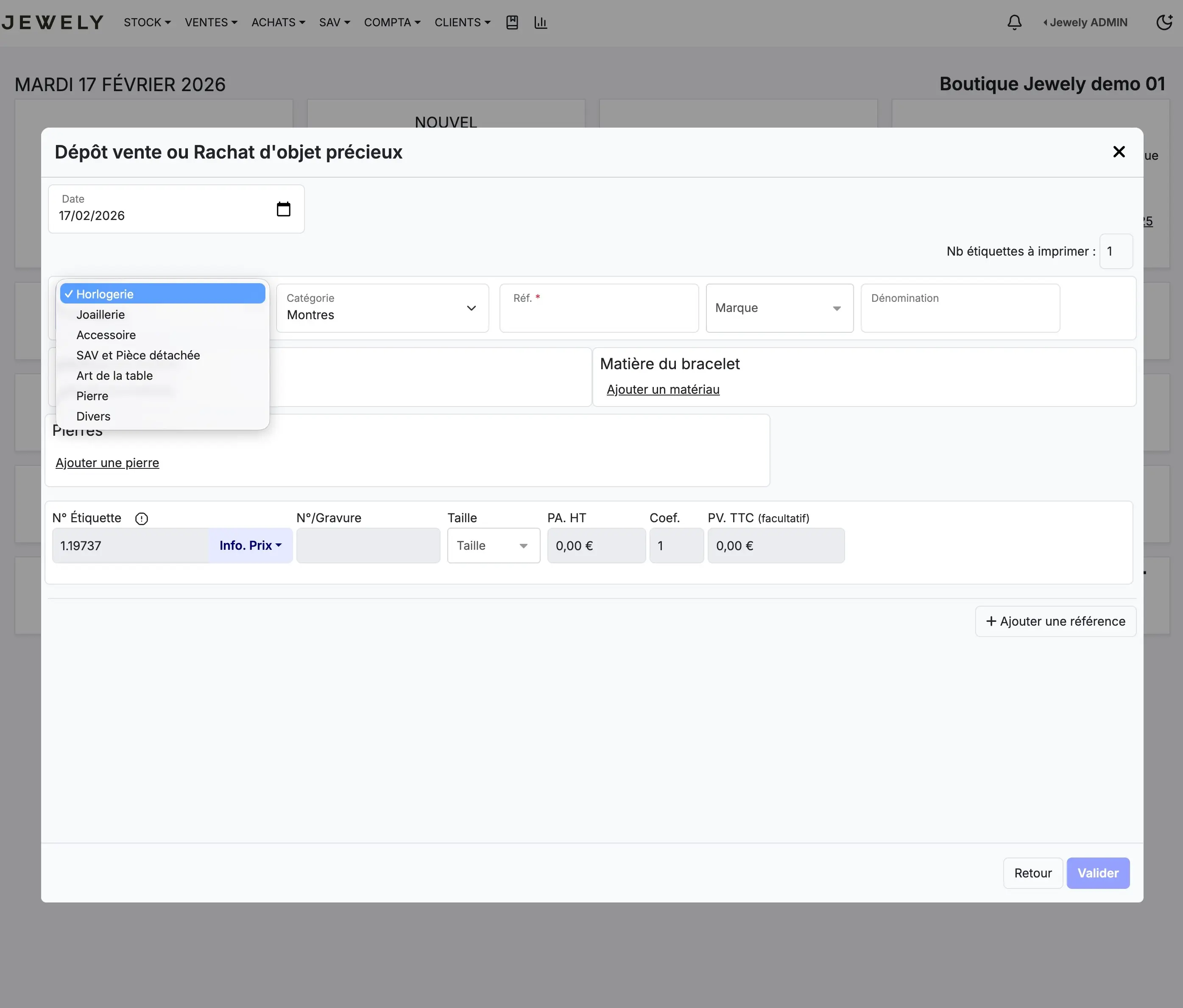
In the input form, start by filling in the general information about the item:
Family : Click on the drop-down menu and choose the corresponding family. In our example, we select «"Watchmaking"». The other available categories are Jewelry, Accessories, After-Sales Service and Spare Parts, Tableware, Stone, Miscellaneous.
Category : Once you have chosen the family, select the category. Here, we choose «"Watches"».
Reference : Enter the article reference. In our example: 789512.
Complete the product details
Continue to fill in the item's specifications:
Brand : Select the brand from the drop-down menu. Here, AUDEMARS PIGUET.
Name: Enter the model name. In our example: Royal Oak Watch.
Case material: click on «"Add a material"» and select the material. Here, we choose White Gold.
Bracelet material: Similarly, add the material of the bracelet. In our example, it is also White Gold.
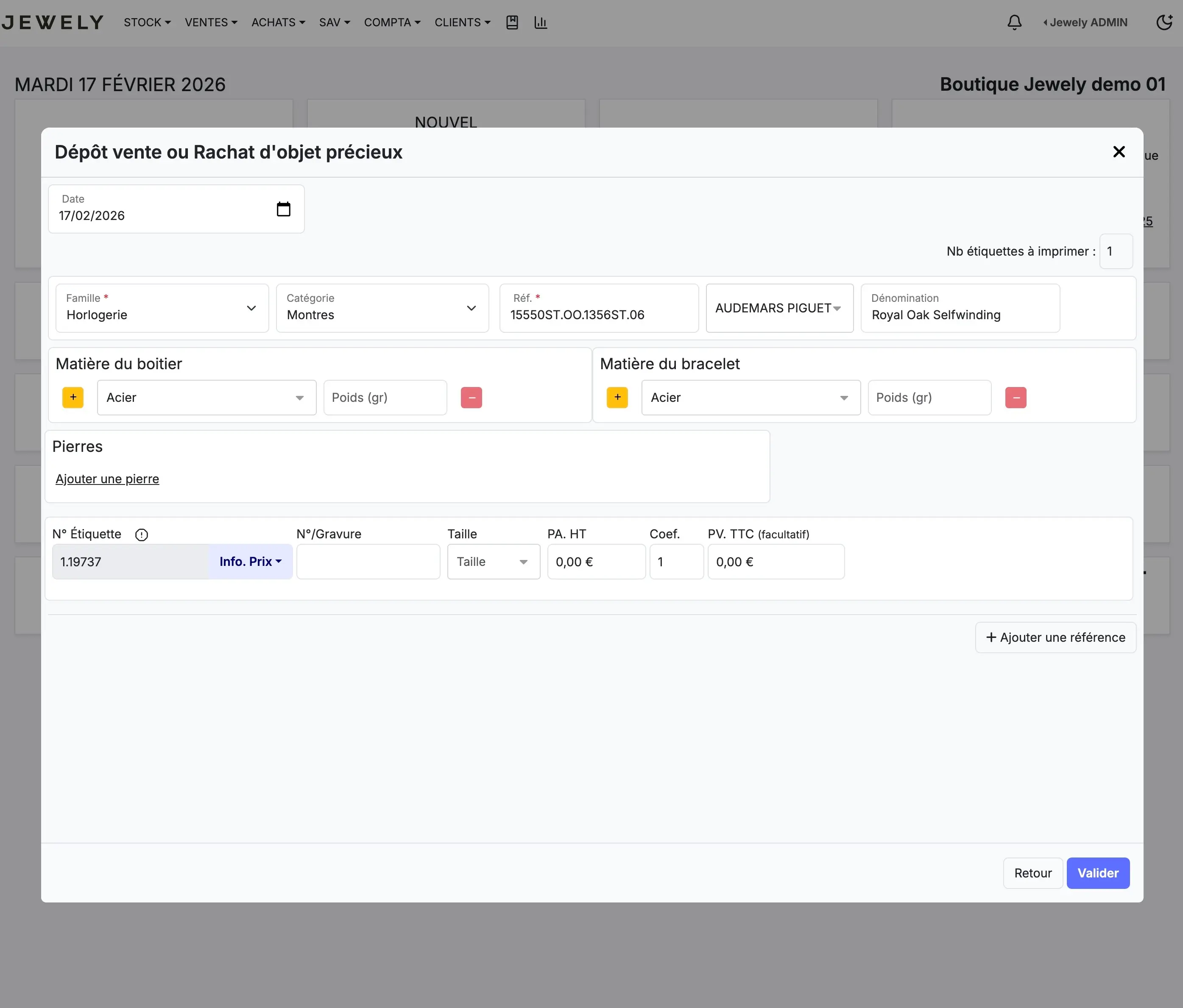
You can also specify the stones if the item includes them, by clicking on "Add a stone" in the Stones section.
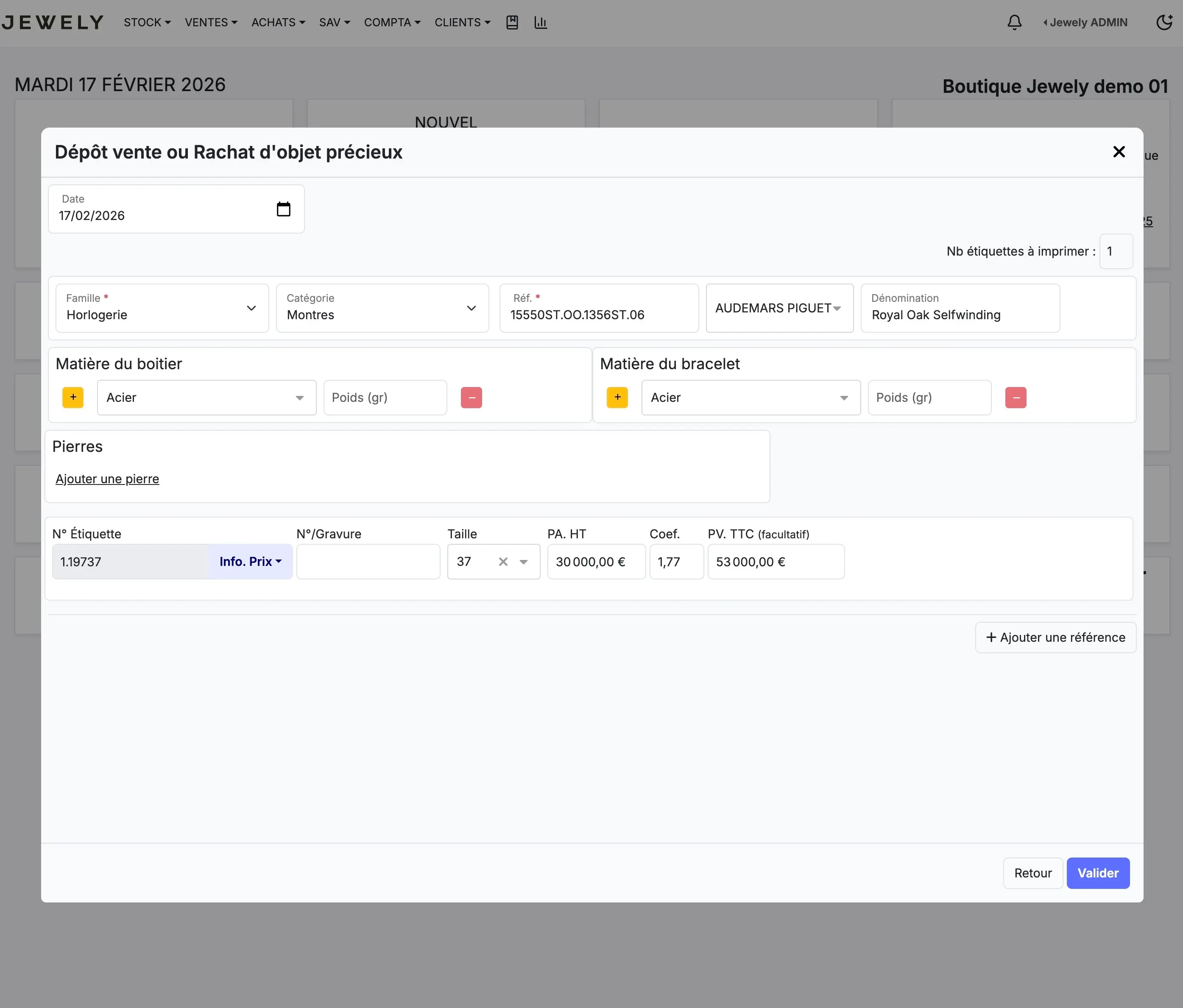
Please specify the size and price.
At the bottom of the form, you will find the pricing line for the item:
Size : Specify the size of the item (for a watch, this is the diameter of the dial in mm). Here: 42.
PA. HT (Purchase Price Excluding Taxes): Enter the buyback price agreed upon with the seller. In our example: 30 000,00 €.
Coefficient: Enter the margin coefficient you wish to apply. Here: 1,50. THE VAT inclusive price (PV TTC) is then calculated automatically: 53 000,00 €.
Once all the information has been entered, click on the button. «" To validate "» bottom right.
Check the consignment sale summary
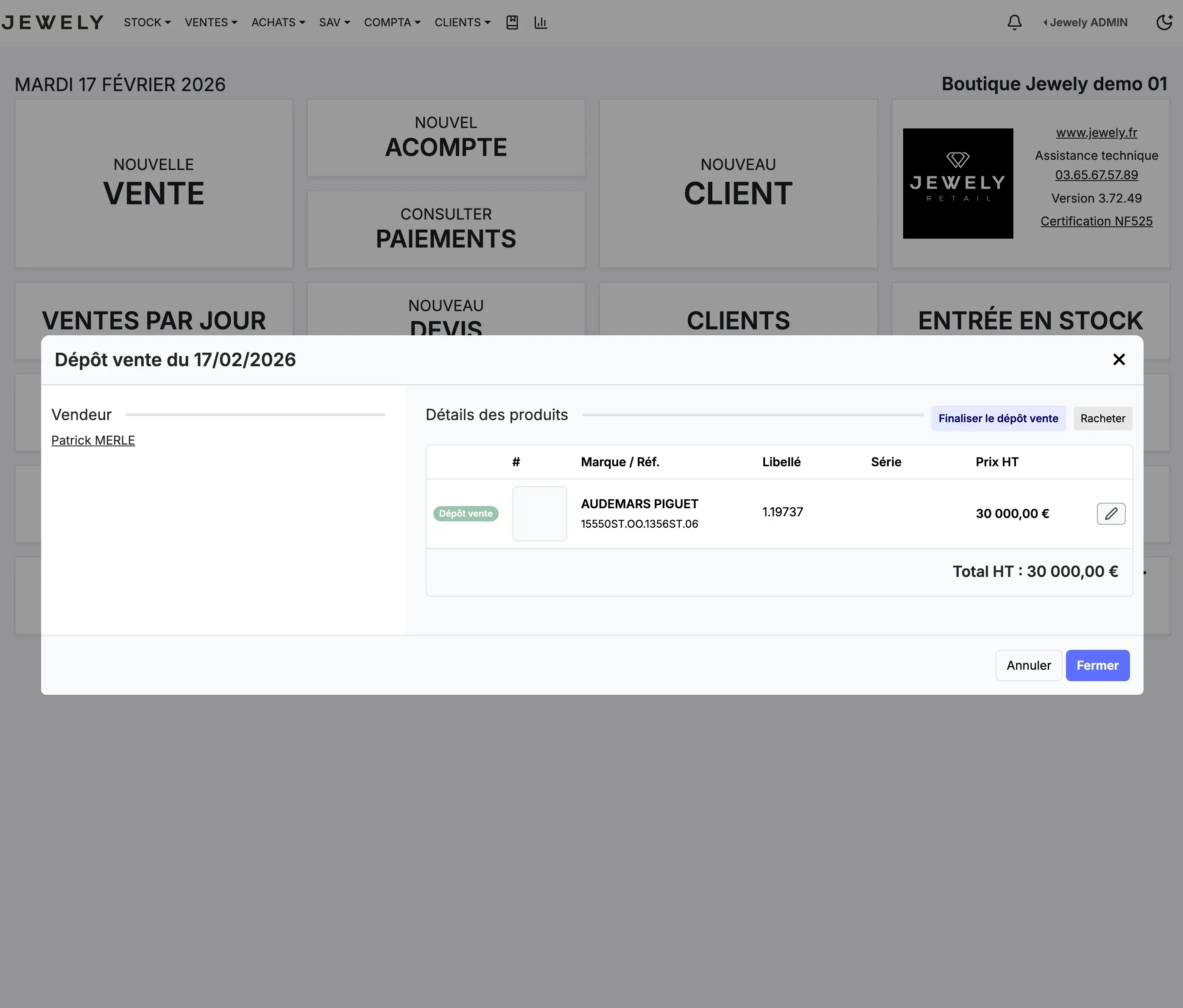
After validation, a message «"Operation successful"» appears in the top right corner of the screen, confirming that the consignment sale has been successfully registered.
A summary window appears with the following information: the name of the seller, there date of filing, and in the section «"Product Details"», the list of registered items with their brand, reference, description and price excluding VAT.
From this window you can «"Finalize the consignment sale"» or click on «" Redeem "» if you wish to convert the deposit into a redemption.
Generate the deposit slip
In the summary window, click the button «"Generate the deposit slip"». A PDF document appears on the screen, summarizing all the information for the consignment sale: the reference and description of the item, the amount including tax, the materials, the identity number of the consignor and the consignment price.
This deposit slip serves as a contract between your shop and the seller. You can’print directly or the’send by email to the seller by clicking on the corresponding button.
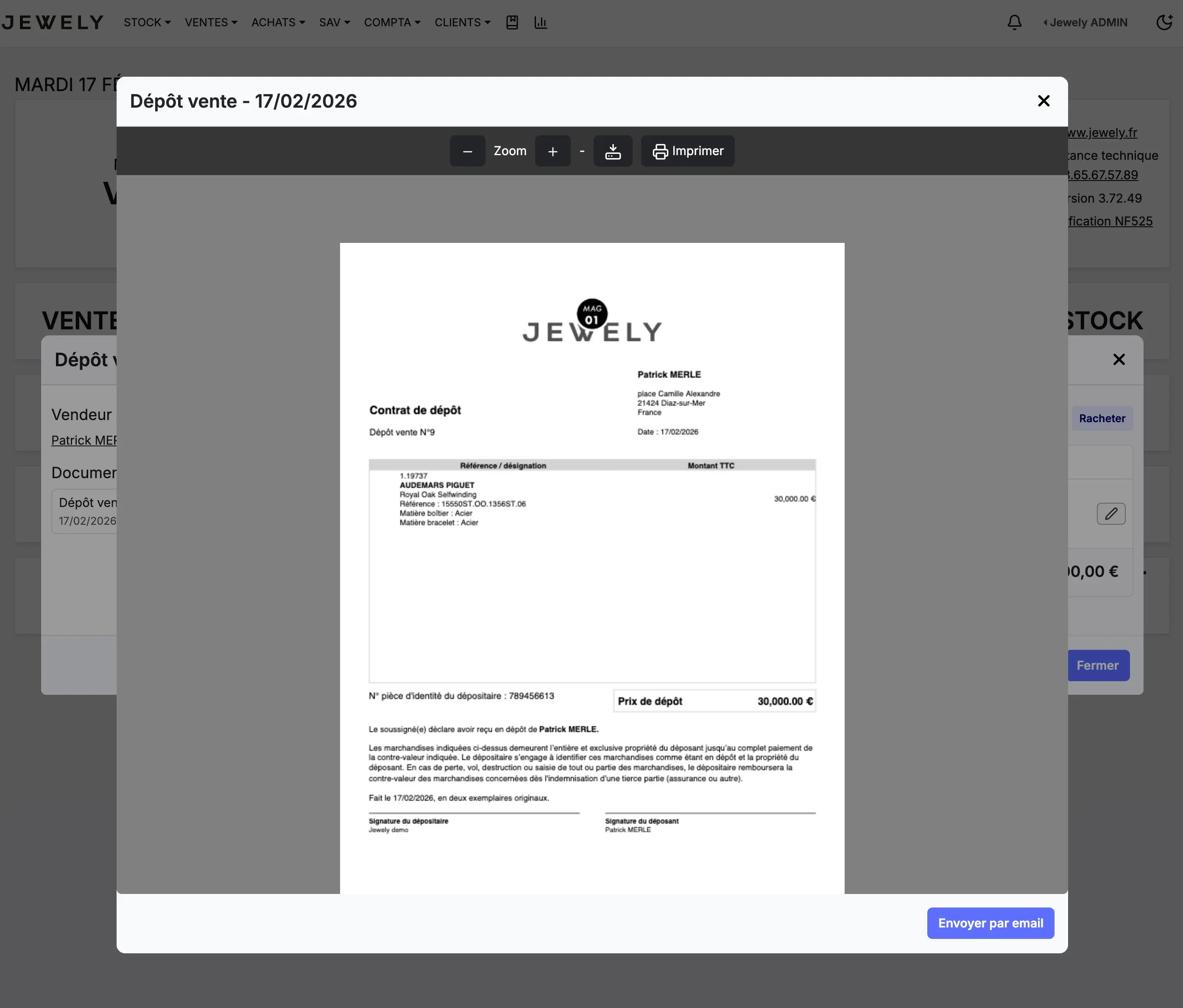
Remember to have the deposit slip signed in duplicate: one for your shop and one for the depositor. This document is important in case of a dispute.
Find the item in your stock
Close the consignment receipt window and the summary window. The consignment item is now automatically added to your stock.
To verify this, go to STOCK in the main menu. You will find the article at the top of the list with the tag «"Consignment shop"» (in green) and «" Occasion "» (in yellow). All the entered information is present: reference, designation, brand, size, selling price and location.
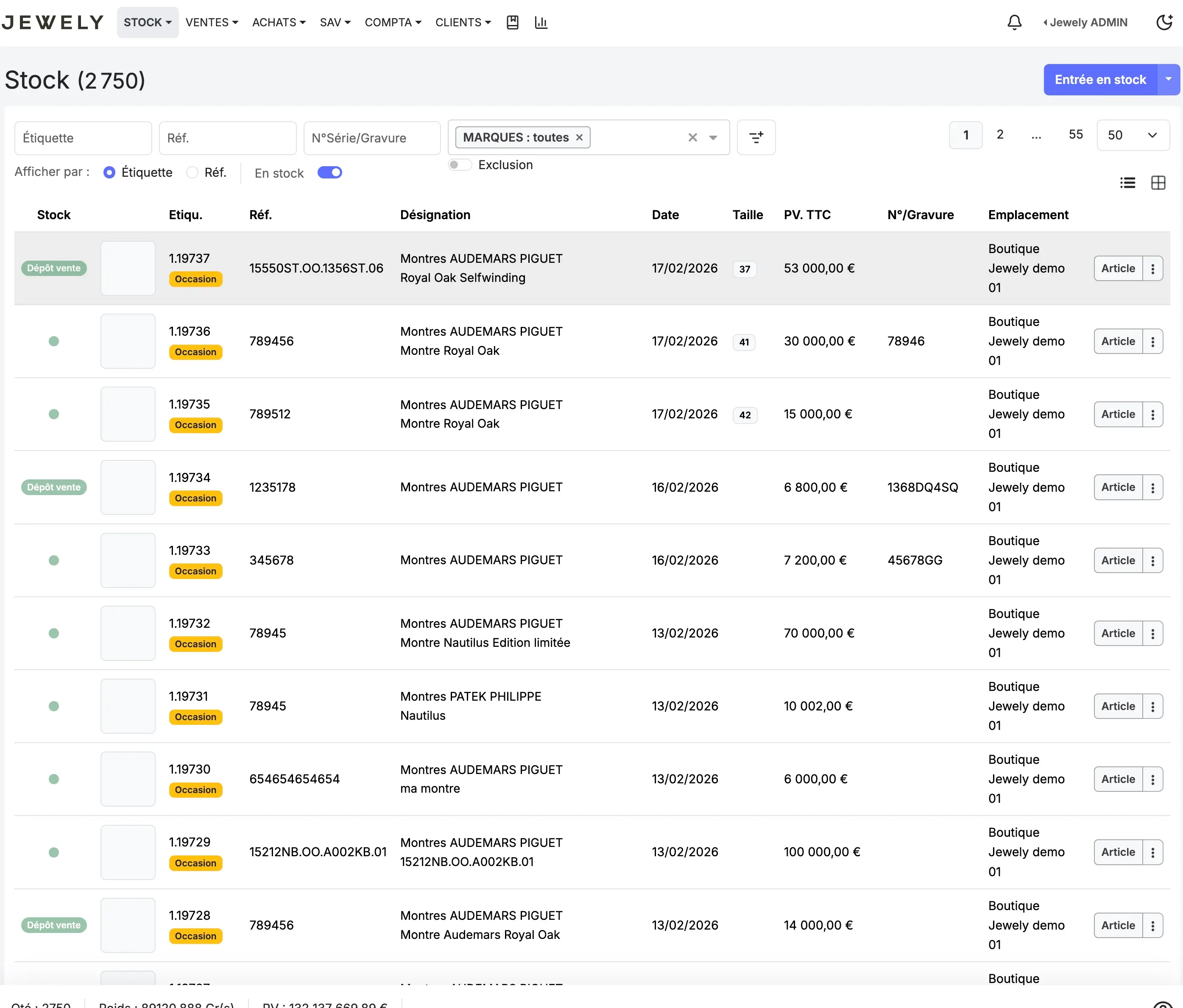
The item is now in your inventory, ready to be offered for sale. You can access the consignment shop at any time in the menu. PURCHASES, where it appears with the labels "Second-hand" and "Consignment sale".
03 65 67 57 89