How to convert a consignment sale into a buyback on Jewely Retail?
When a customer has entrusted you with an item on consignment and you ultimately decide to buy it back, Jewely Retail allows you to transforming consignment sales into buybacks in just a few clicks. The operation automatically generates the buyback voucher with the calculation of taxes (TPV, CRDS) and allows you to proceed with the payment to the seller directly from the interface.
- Being connected to Jewely Retail with an administrator or seller account
- To have a existing consignment shop saved in the Purchases module
- Know which item you wish to buy back
Access the shopping list
From the Jewely Retail dashboard, click on the menu PURCHASES in the navigation bar at the top of the screen. A drop-down menu appears with several options.
Click on View purchases to access the complete list of your purchases (buybacks, consignment sales, new items, etc.).
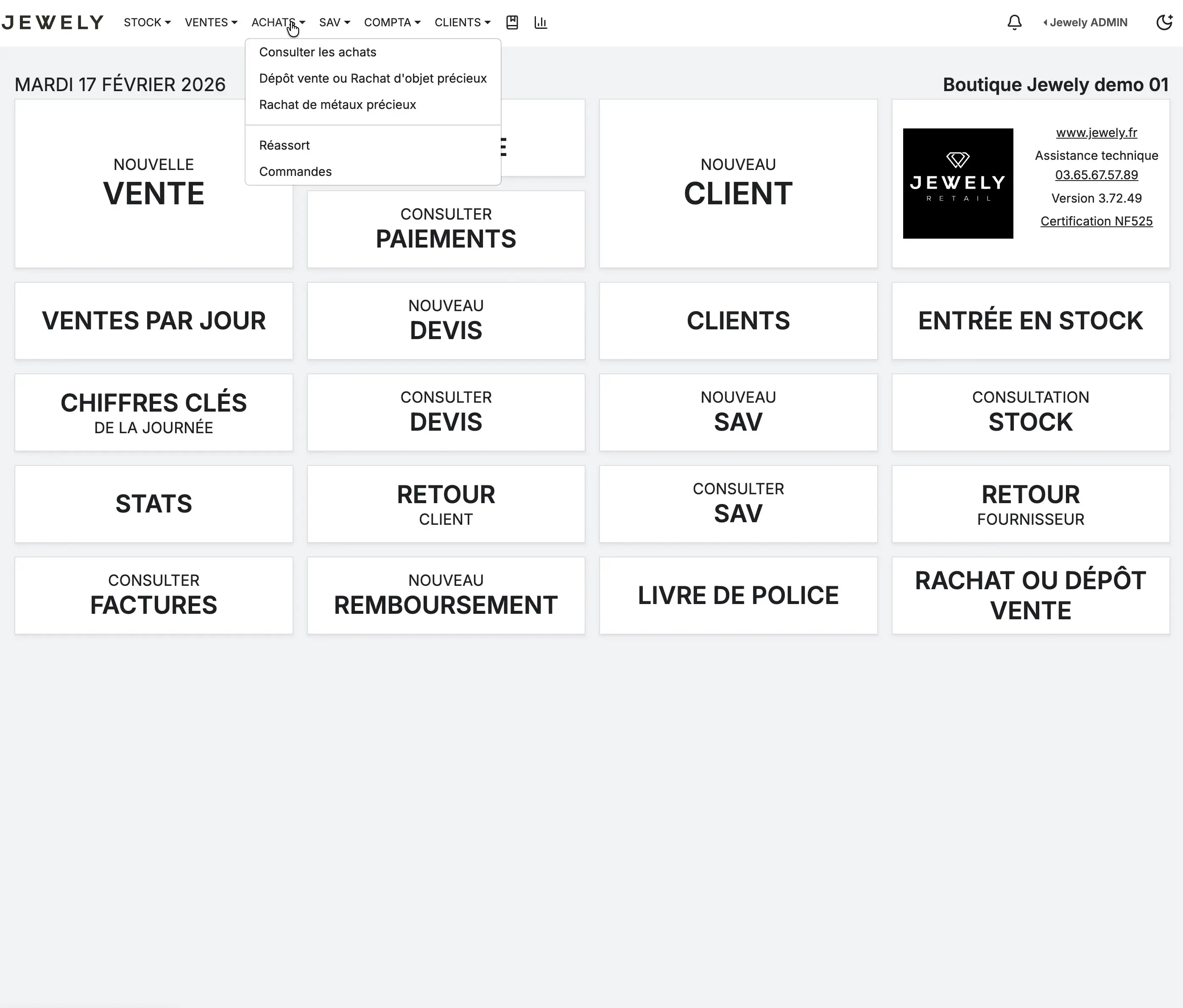
You can also access this page directly by clicking on the button BUYBACK OR CONSIGNMENT SALE from the dashboard.
Locate the consignment shop to be transformed
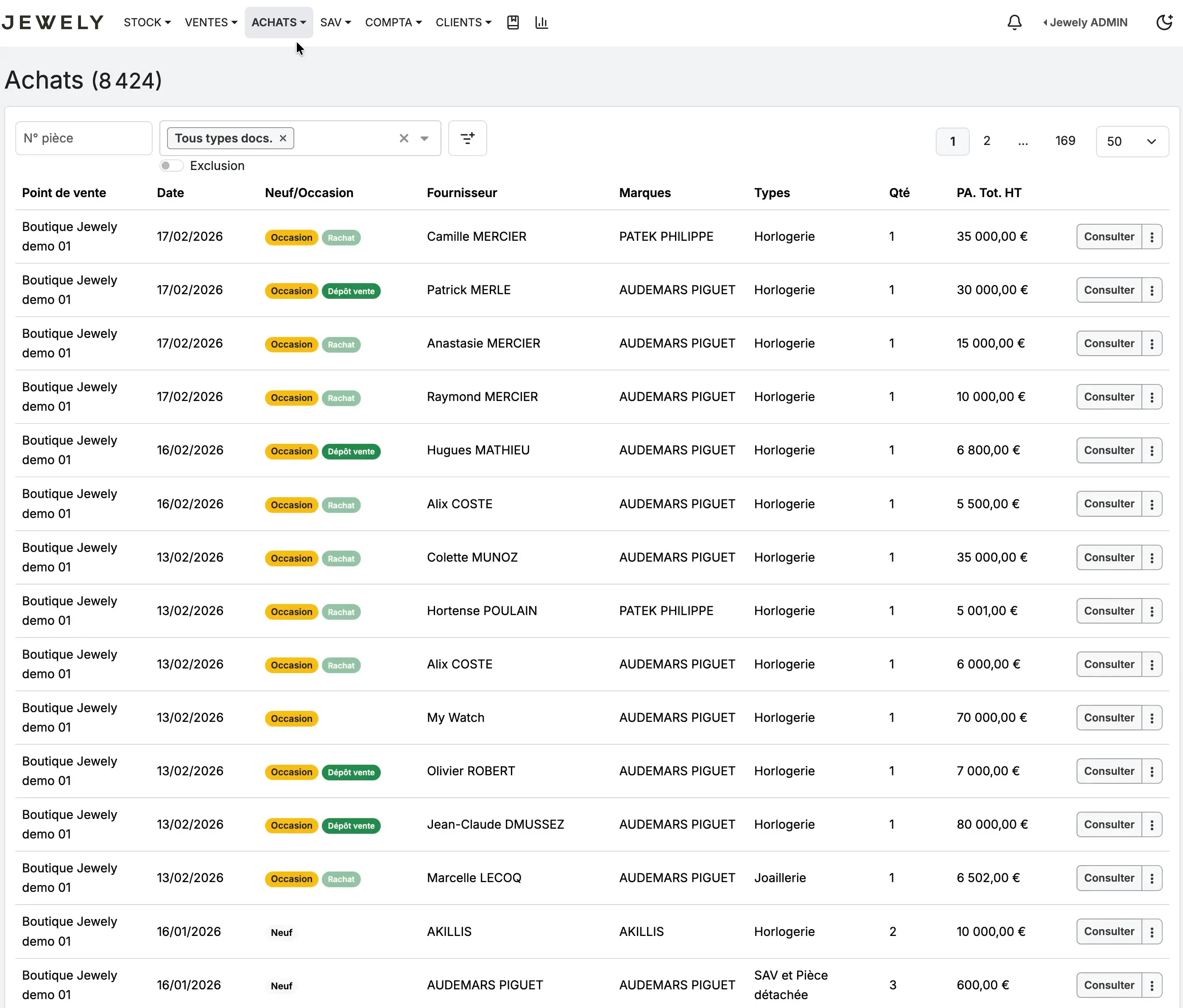
The page Purchases displays a list of all your transactions. Each line shows the date, supplier (seller), brand, type, and amount. Locate the column New/Used Consignment shops are identified by a green badge Consignment shop next to the orange badge Occasion.
In our example, we will transform the consignment shop of Patrick MERLE for a watch AUDEMARS PIGUET in the amount of 30 000,00 €. Click on the button. To consult located to the right of this line.
View the consignment shop details
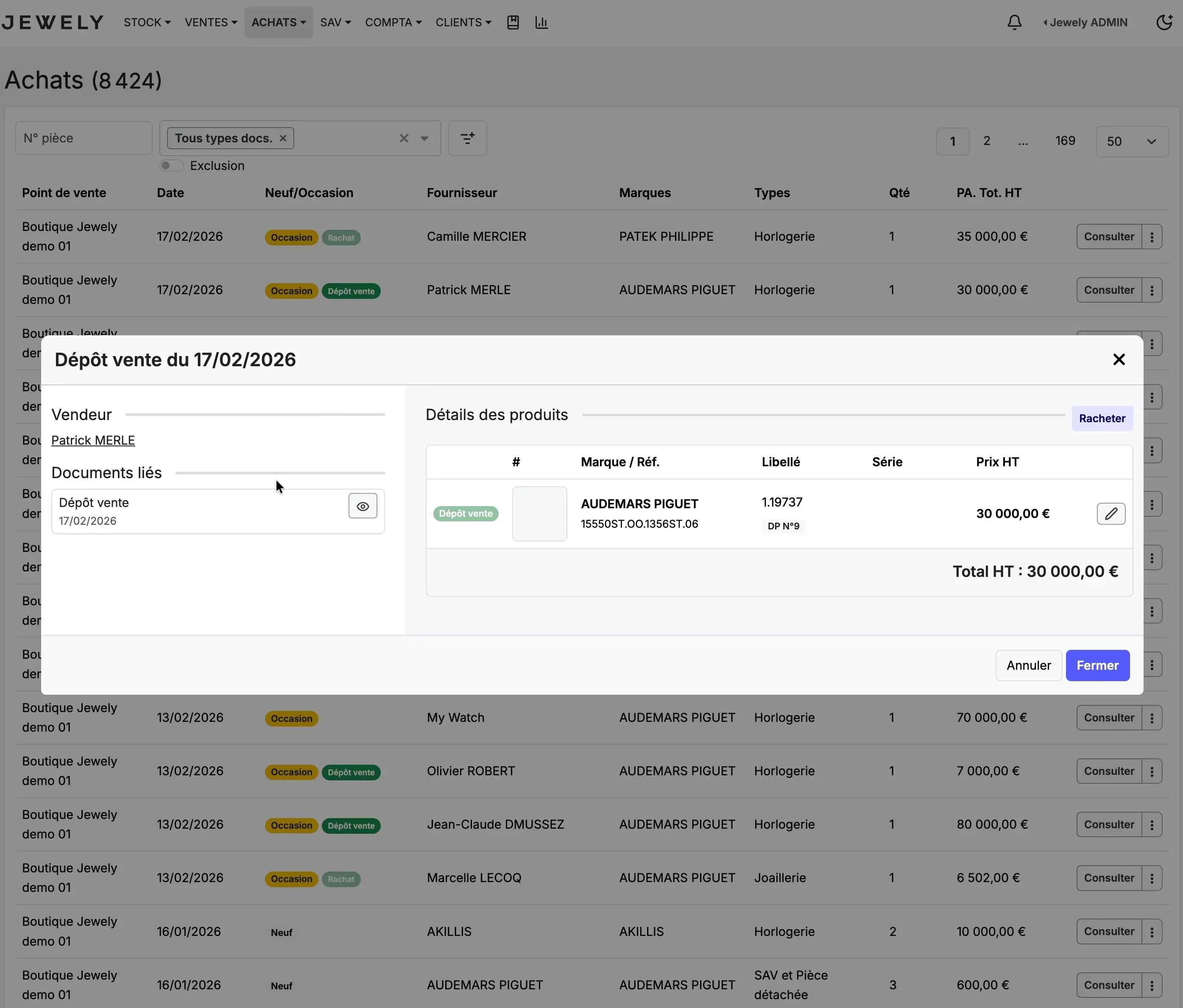
A modal window opens and displays the details of the consignment sale. You will find the following information there:
On the left, the name of the Seller (here Patrick MERLE) and the Related documents (the initial consignment contract). On the right, the table Product details with the brand, the reference (AUDEMARS PIGUET 15550ST.OO.1356ST.06), the description, and the price excluding VAT (30 000,00 €).
In the top right corner of the table, you will see the blue button Redeem. This button is what allows you to initiate the transformation of the consignment sale into a buyback.
Select the item to buy back
After clicking on Redeem, A checkbox appears to the left of each item. Check the box that you wish to repurchase: the box turns blue to confirm your selection.
A new green button appears in the bottom right corner of the table: Generate the right buyback. Click on it to start the buyback process.
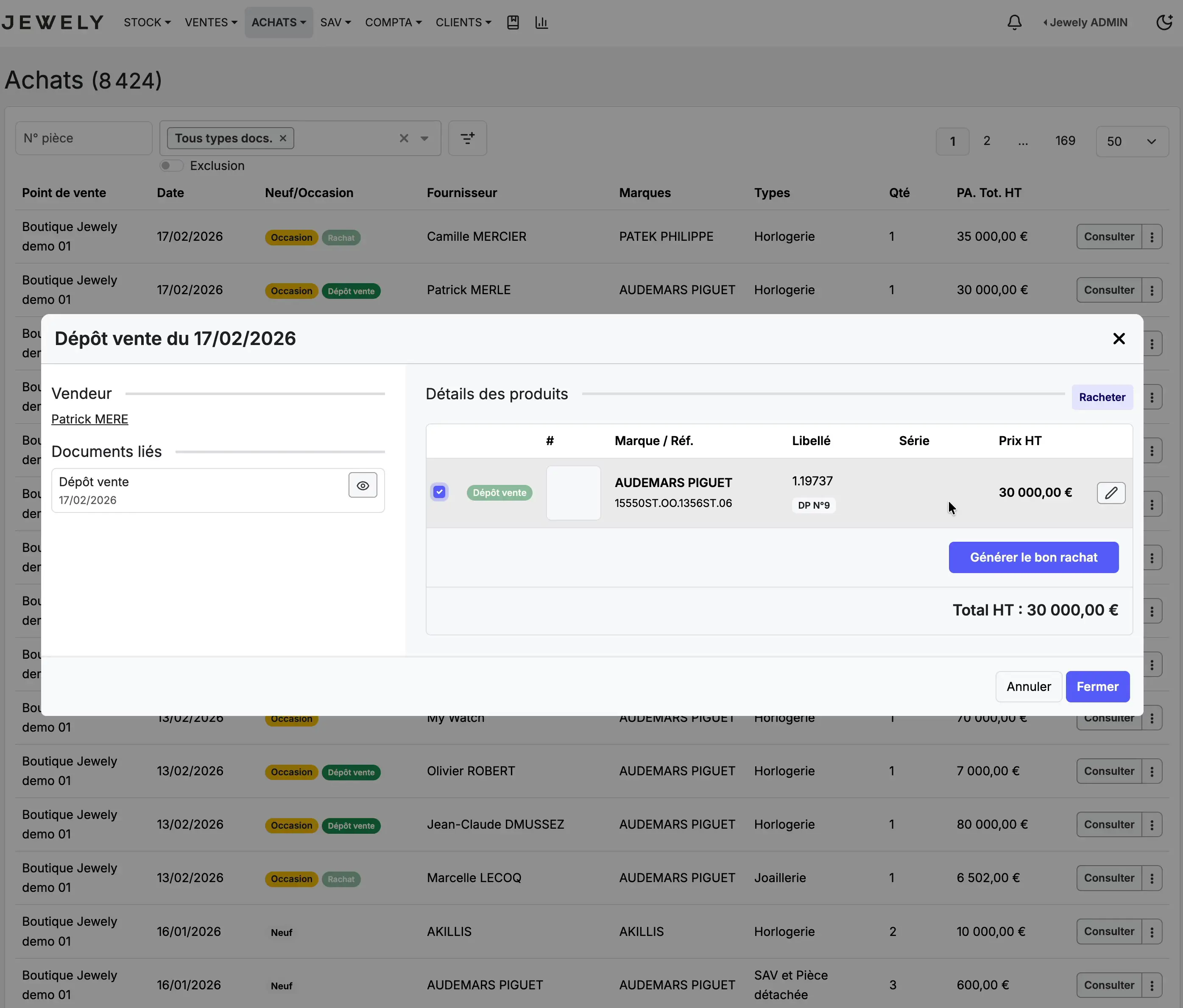
If the consignment shop contains multiple items, you can select one or more to purchase. Items not selected will remain on consignment.
Check the summary and confirm the purchase
A confirmation window Redemption This displays a complete summary of the operation. You will find the following information there:
The description of the item (AUDEMARS PIGUET Royal Oak Selfwinding Watches), THE Purchase price of €30,000.00, as well as a breakdown of the automatically calculated taxes: POS terminal (6 %) = 1 800,00 €, CRDS (0.5 %) = €150.00, or one Total taxes (6.5 %) of €1,950.00 and a Cost price (CP) of €31,950.00.
If everything is correct, click the button. To validate to confirm the acquisition.
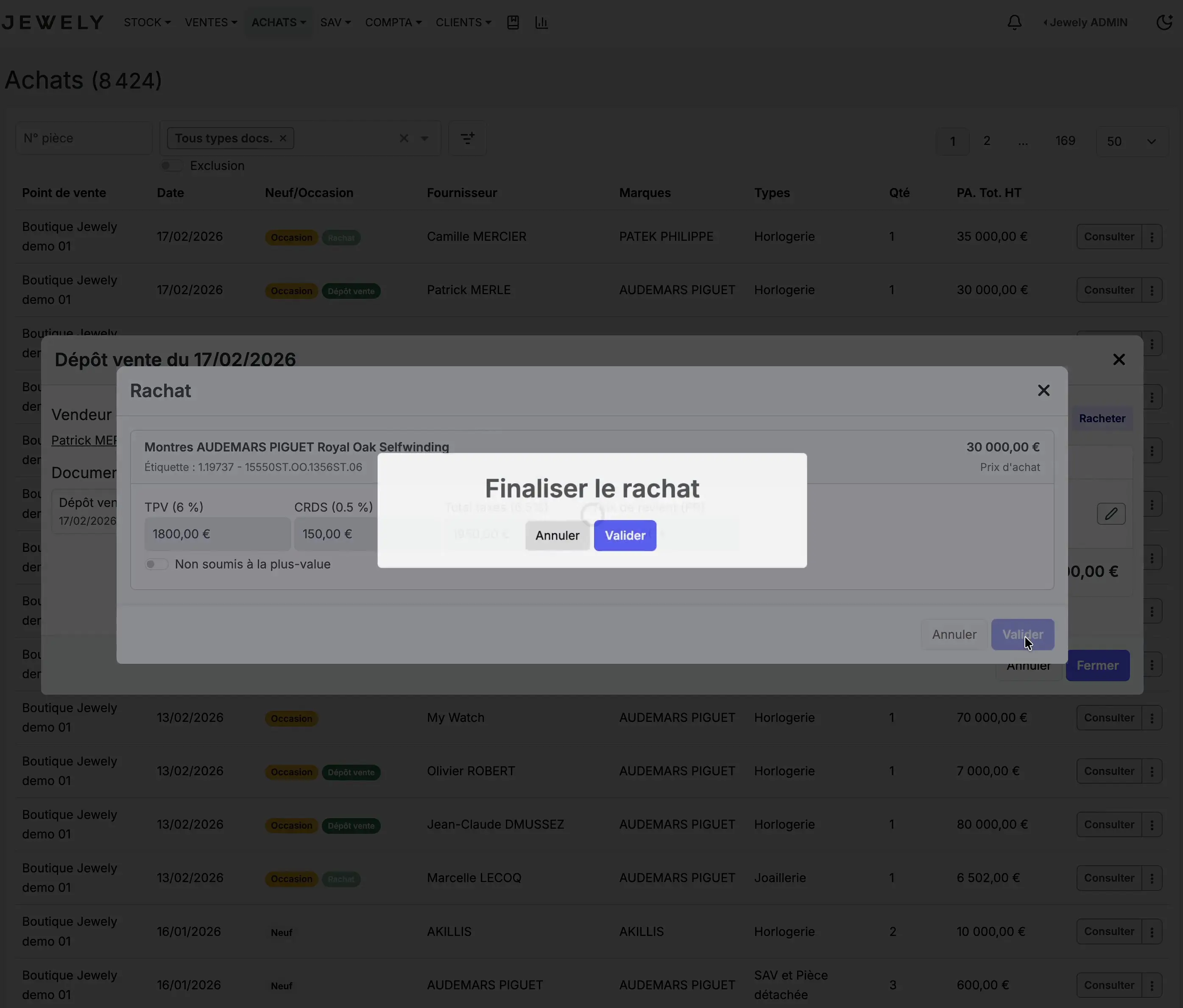
The option Not subject to capital gains tax allows you to indicate whether the item is exempt from capital gains tax.
Confirm the success of the operation
A green message Operation successful appears in the top right corner of the screen. This confirms that the consignment sale has been successfully converted into a buyback. You can see that the badge for the line in the purchase list has changed from Consignment shop à Redemption.
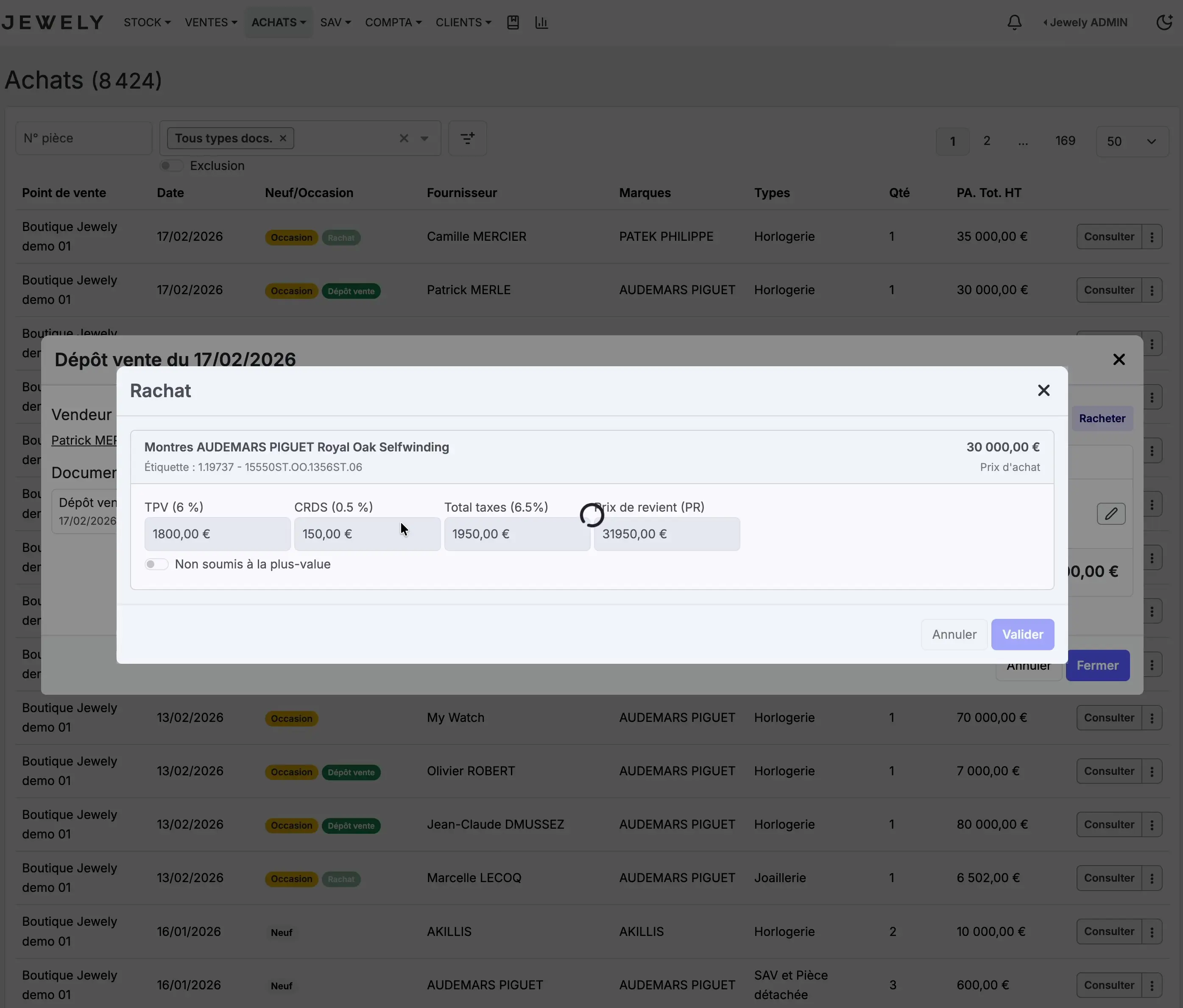
Consult the related documents
Back in the details window, the section Related documents has been updated. You will now find two documents there:
THE Redemption voucher newly generated (with the number of items, the PA amount, and the remaining balance due), accompanied by a download icon and an eye icon for viewing. Below, the Consignment shop The initial data remains archived for traceability purposes.
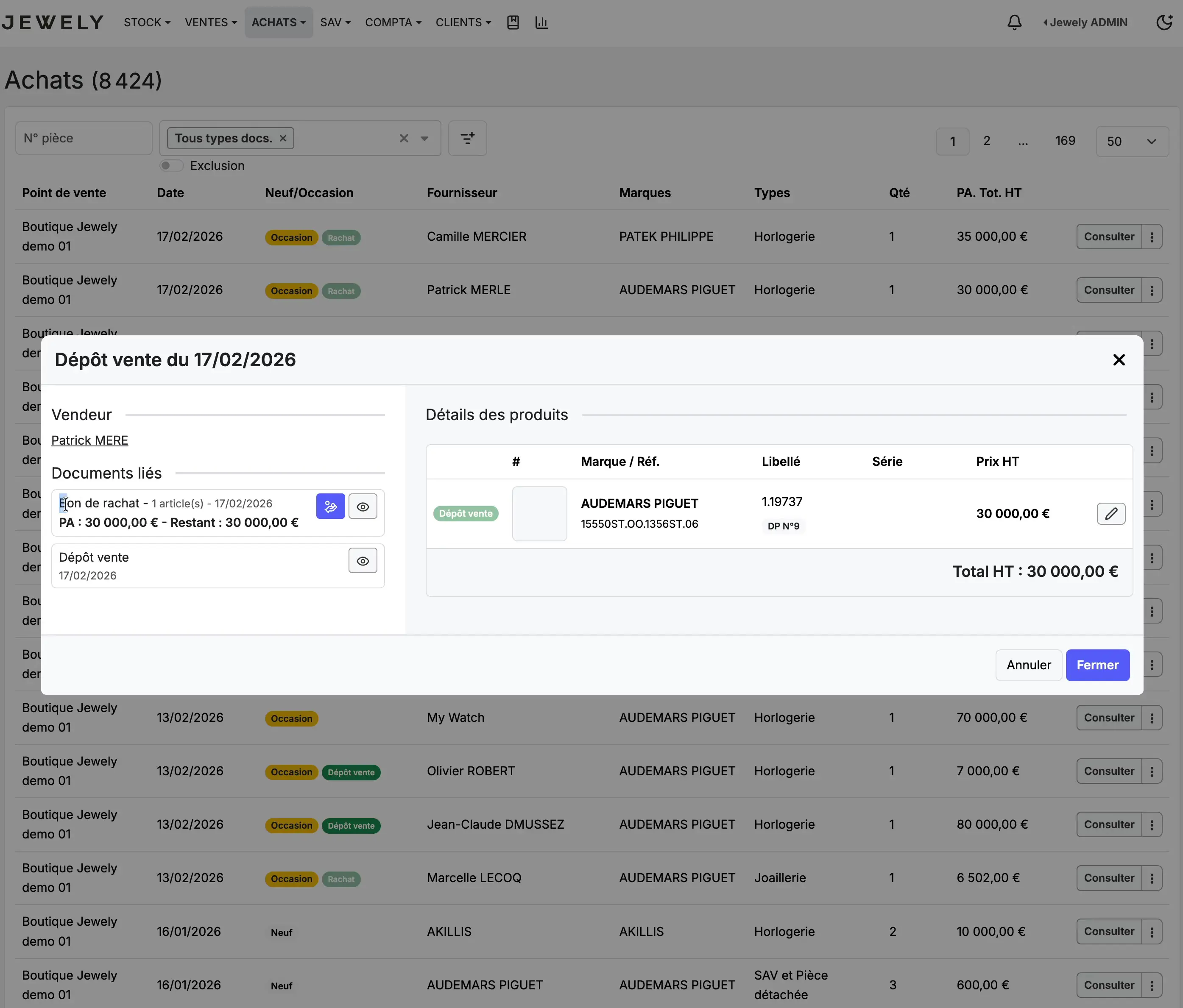
View and print the redemption voucher
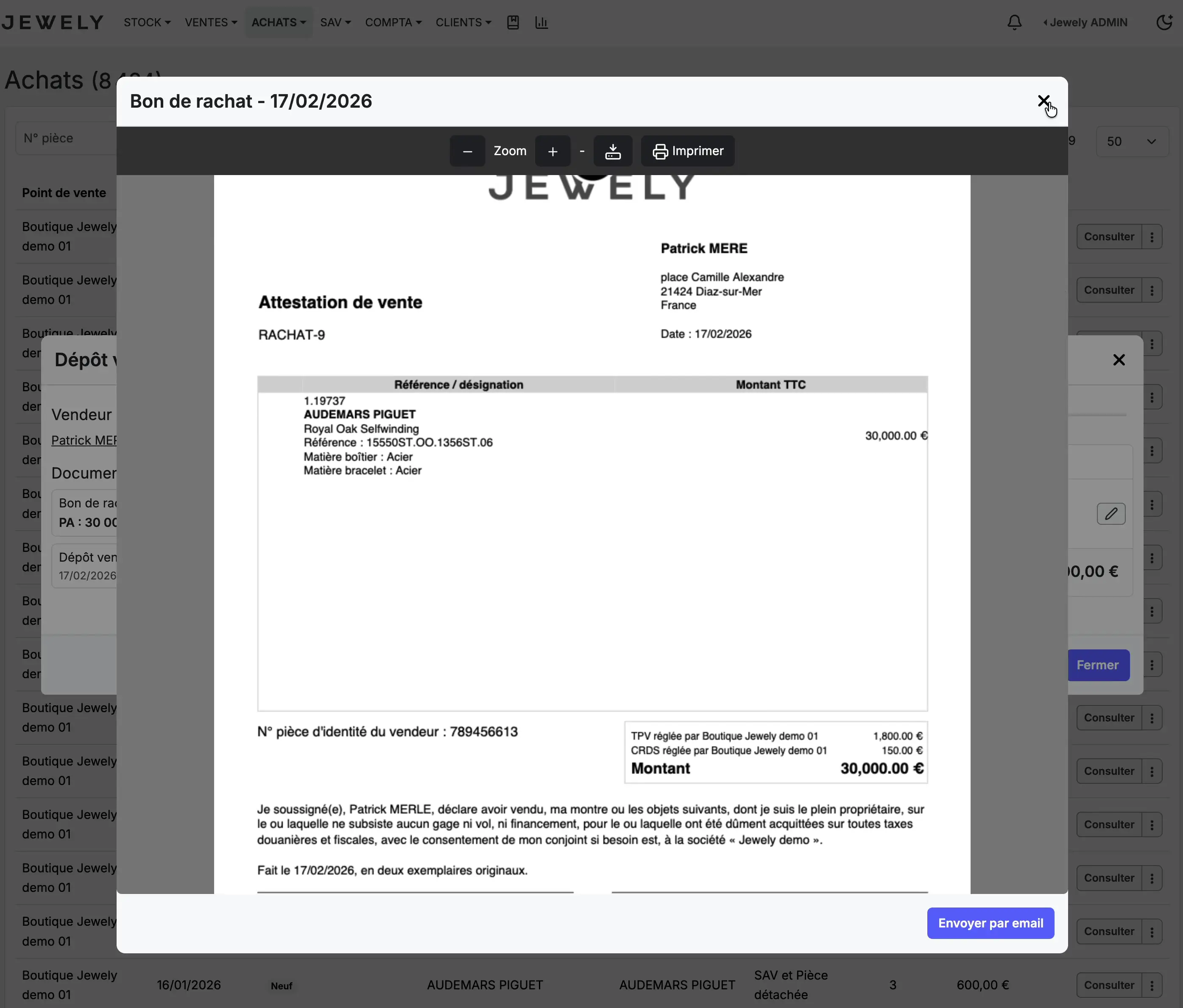
Clicking on the eye icon on the redemption voucher opens a PDF preview. This is an official document. Sales certificate (here BUYBACK-9) contains all the necessary information: the seller's contact details, the complete description of the item (brand, reference, materials), the amount including tax, the seller's identity document number and the details of the taxes paid.
You can zoom, download Or print the document using the buttons at the top of the viewer. The button Send by email The bottom right corner allows you to send the voucher directly to the seller.
Proceed to payment to the seller
After closing the PDF preview, the details window now displays a new section Regulations bottom left. You have two options: Settle the buyout (immediate payment) or Credit the account (transfer the amount to the seller's account).
Choose the payment method In the drop-down menu (Credit card, Bank transfer, Cash…), enter the Amount to adjust (click on Max. (to automatically fill in the total amount), check the Date, then click the button To validate to finalize the settlement.
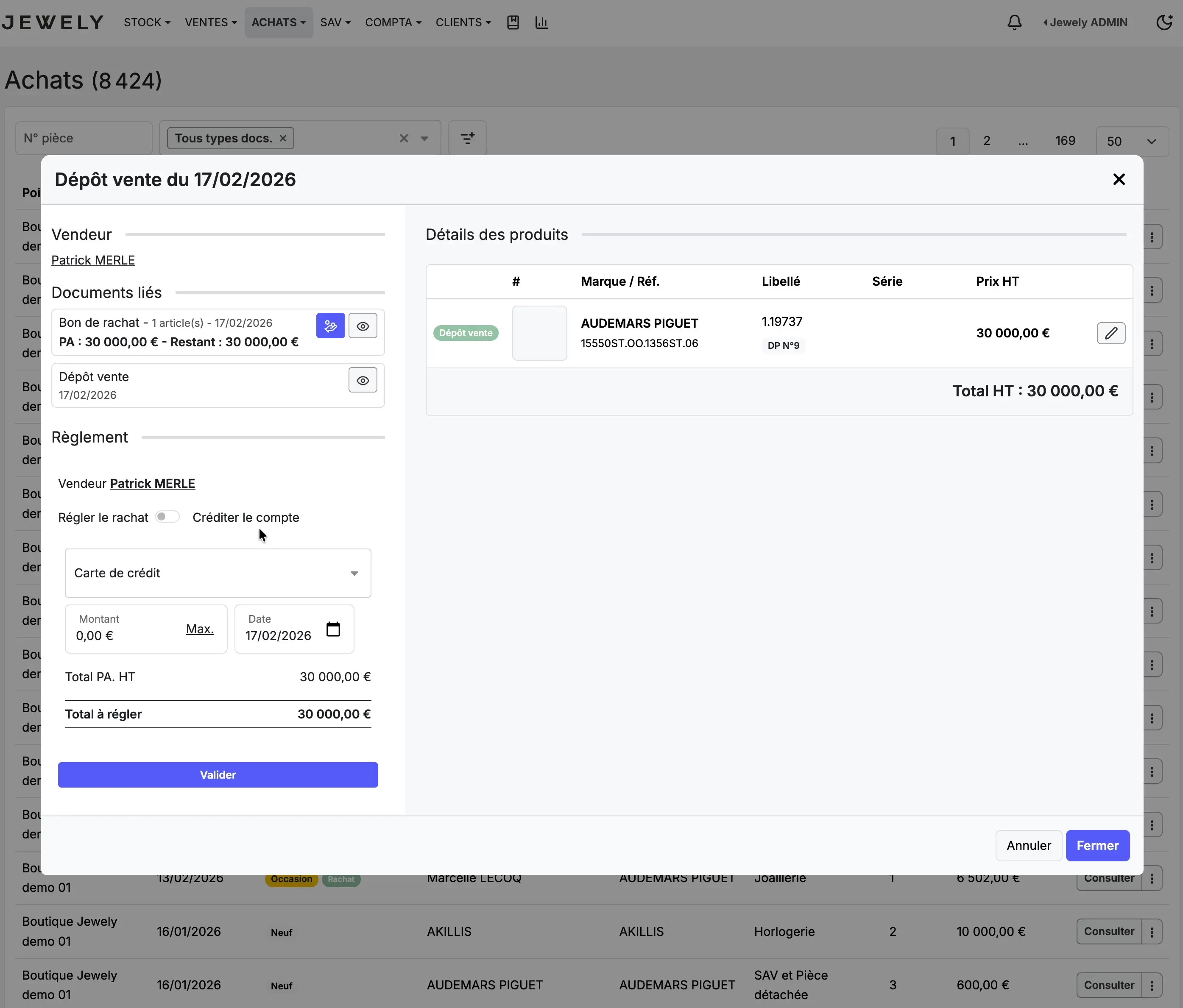
You can partially pay the seller by entering an amount less than the total. The remaining balance will be visible in the linked documents and can be paid later.
The consignment sale has been successfully converted to a buyback. The buyback voucher was automatically generated, including tax calculations (TPV and CRDS). The item is now recorded as a buyback in your inventory, and the seller can be paid directly through the interface.
03 65 67 57 89